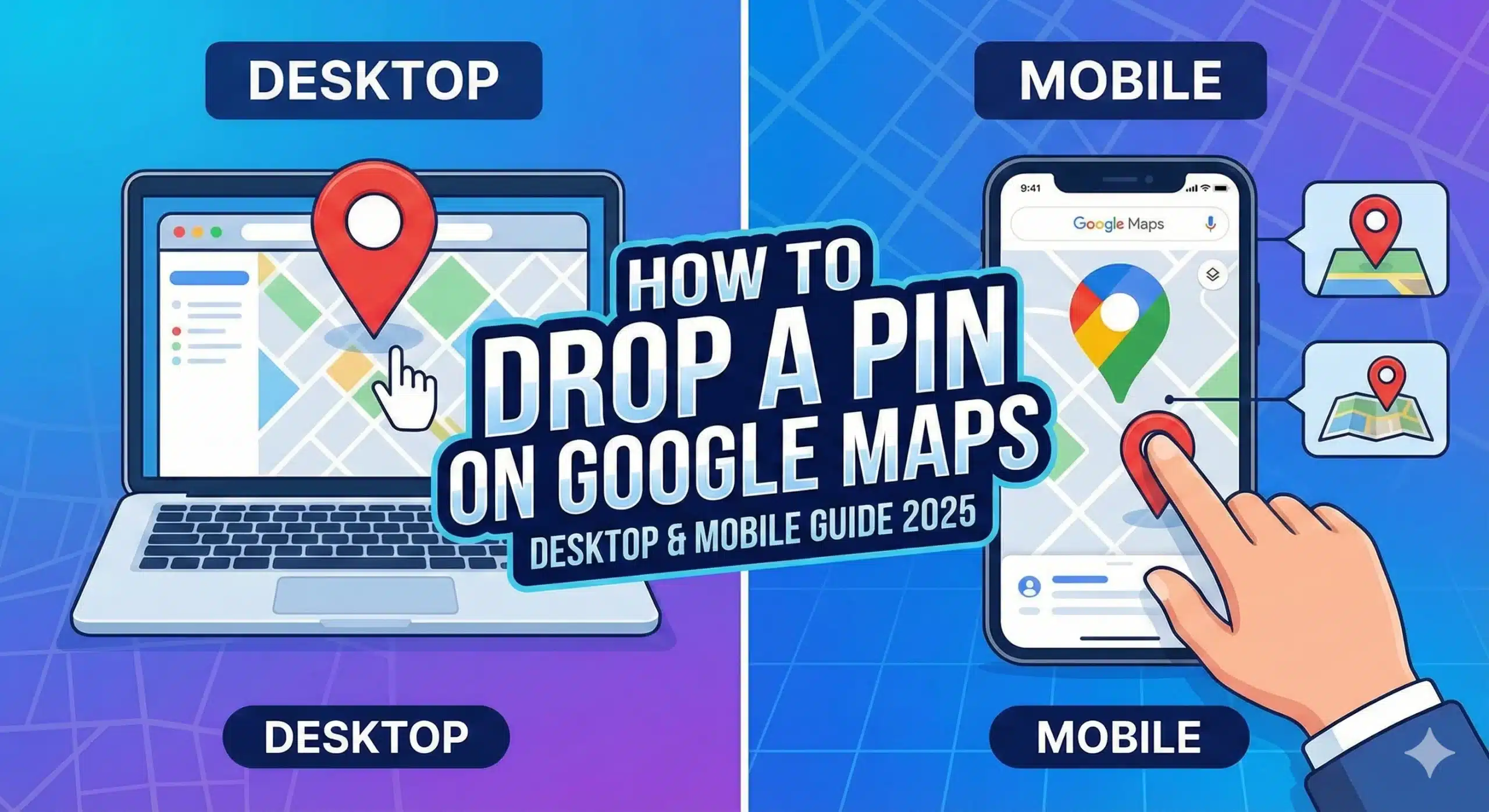
Still scrolling and struggling to mark the exact spot on Google Maps? Or you found a perfect place with no name, and you want to save it forever- but don’t know how to do it? So, you are not alone. In 2025, Google Maps Pin Drop has become the go-to navigation, and many users are looking to know the simple and easy way to drop a pin in Google Maps through Desktop & Mobile.
Thanks to Google’s latest enhancements, dropping a pin on Google Maps has become easy and convenient for users. You just need to tap a few clicks, and you can pin your favourite location. Whether it’s a hidden cafe, a roadside truck or any business location you want to revisit.
If you are also struggling to drop a pin on your favourite location, then keep reading this blog. In this guide, we will teach you how to drop a pin in Google Maps, whether it’s on Desktop or Mobile.
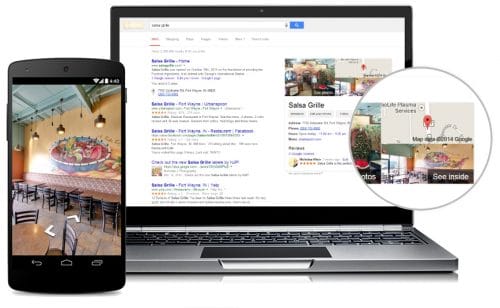
Google Search map is an advanced feature that combines Google Maps & Google Search. This feature appears when you search for your place on Google, like “Best restaurant near me”, “Nearest Coffee shop”, or “Hotels in Mumbai”. Google shows you a mini map directly on the SERP without opening the full map.
Drop a Pin on Google search map refers to marking the spot on the map. Even if the place does not have a name, address or landmark. You can consider it as a digital thumb on the world.
Let’s understand it with an example: Suppose you are exploring Sri Lanka and reach the beautiful place with no name and no landmark on a map, as it is a hidden place that no one knows. You want to come to that place again. This is where dropping a pin works. With this, you can save that location for a lifetime.
In today’s large digital world, finding the right location can make all the difference. Google Maps is mostly used to share current or live locations, but sometimes the current address is not enough, and we need to mark a location that doesn’t exist. At that time, Google Maps introduced the Drop a Pin feature. Let’s see some stats that show the demand for Google Maps in today’s digital world.
Drop a pin in Google search map on desktop is simple and easy, Let’s see the step-by-step guide:
Step 1: Open Google Maps on Your Browser
First of all, open your Google Maps on your browser. Always ensure that you are signed in with your account. With that, you can save or add a label to your pin.
Step 2: Navigate to the Location you want to mark
Now, use the search bar and type the address to navigate to the location that you want to mark.
Step 3:Click on the Exact Point of the Map
Now, when you find the exact point where you want to drop a pin. Click on the exact point and right-click. You will see a menu in which you need to select drop a pin or Add a missing place.
Step 4: View the Details on the Dropped Pin
After placing the pin on Google search map, you get an information panel at the bottom or side of the desktop. With this, you can see the coordinates and nearby places.
Step 5: Save the Pin for Future Use
If you want to keep the pinned location for future use, then you can click on save or add to favourites. Additionally, you can also label the dropped pin with the name of the location.
Dropping a pin in Google search map on an Android mobile is easier than on other devices. It is used when you don’t have the exact address of the place. So, let’s see the step-by-step guide on how to drop a pin on Android:
Step 1: Open the Google Maps App
Now, open Google Maps on your Android device. Always make sure that your Google Maps is signed in to your account. It allows you to save your pinned location in your Google account for future use.
Step 2: Find the Exact Location to Mark
Search and find the exact location that you want to mark. If there is any existing location, then you can search name or address in the search bar.
Step 3: Tap & Hold on Exact Point
When you find the exact location or spot, tap and hold on the exact point. After a second, you will get a red pin, marking your spot precisely on the map.
Step 4: View the Location Card
Same as the desktop, after pinning the location, you will get the information panel that shows the location detail, coordinates and nearby places.
Step 5: Save the Pin for Future Use
In the Detail panel, you also get the option to save the pin for future use. And also, you can get the direction from the pinned location.
Are you an iPhone user and want to know how to drop a pin in Google Maps? This step-by-step guide will show you:
Step 1: Start Google Maps
Firstly, start Google Maps on your iPhone. Sign in with your account only if you want to save and share your location.
Step 2: Navigate the Location
Now, search your preferred location, and if the location has no address, then find the location manually. You should zoom in as much as possible to find the exact locations and nearby locations.
Step 3: Hold on to the Map
Once you’ve reached the exact spot where you want to drop a pin, hold on the map and you get a red pin on your location. You can mark your location precisely.
Step 4: View Location Details
After pinning the location on the map, you get a detail panel where you can see the nearby location and save and share the location.
Sharing a dropped pin is also simple and easy. Let’s see its steps to follow:
Step 1: Drop a Pin on Desired Location
How to drop a pin is clear to everyone, right? So firstly, drop a pin with the above informed steps on your desired location.
Step 2: Open the Pin Details
When you hold your dropped pin, you will get an information panel where you get all the Pin details.
Step 3: Click or “Tap” the Share Option
Now, you will get a share option on the panel. Click on that and share your pinned location.
Step 4: Choose Your Sharing Method
Before sharing, you will get some sharing methods, such as:
Step 5: Send the PIN and Guide
After sharing the pinned location from your side, your recipient can open the link and follow the exact location with no confusion at all.
To improve your business visibility, using the drop a pin feature is a smart step. With this, you can guide your customer accurately and streamline your operations. Still, many businesses are confused about how to use the Google Maps drop a pin feature for businesses. This guide will show you:
As we all know, sometimes we need a location where we are not available, or sometimes we like the place, but that is not located on the map. To share and save the location for future use, people use the Google Maps Drop Pin feature. Let’s see some of its uses:
While dropping a pin on the exact location, give a little extra care. Follow some exclusive tips that will make every pin on Google Maps accurate:
If you want to unpin the dropped pin when you don’t want to use it or keep it on your Google Map, then it also allows you to remove the pin by following some steps:
Open Google Maps
Nowadays, Drop a pin is more than just a navigation feature, but it helps users to save and share their favourite locations. In this guide, we have covered all the steps to drop a pin in Google search maps from Mobile as well as desktop. Google’s drop a pin feature is really helpful as it ensures that you can go from lost to located anywhere in the world. Stay connected with WebHopers to learn more about Google and digital help.
Answer: Drop a Pin is a Google Search Map feature that allows users to mark any location, save it for later and share it with others. Sometimes, we find a location which we truly like, but don’t know the exact location. At that time, we can drop a pin on Google search maps.
Answer: Once you drop the pin, you get an information panel where you get the option to save and share the pinned location with others.
Answer: Yes, dropping a pin can be done while offline, but for sharing, saving and navigating, you will always need the internet.
Answer: Absolutely, after dropping the pin, you can click on the direction to know the exact time to reach the desired location.
Answer: No, Drop a Pin can be used without having an account, but if you want to save and share the pinned location, it requires signing in or creating an account.
Answer: Google Maps allows users to drop unlimited pins. Multiple pins allow users to plan their trip and work effectively.
Answer: Once you have entered the starting point, start adding stops on Google Maps. Drop a pin also works as an added stop to your exact locations.
Answer: Yes, Google Maps allows you to drop a pin anywhere in the world. Whether you are looking for travel planning, sharing or for personal preference, you can easily drop a pin anywhere.
Answer: No, Full icon customization is not allowed on Google Maps, you can just add labels and save your pin on your Google account.
Answer: If your drop pin is landing in the wrong place, then remove the pinned location and start pining again with satellite view.